Balancing which apps automatically start up when you open Windows is more of an art than science. You'll want to disable heavy apps that will slow down your PC's boot up time, but you might also want to enable useful utilities like LocalSend, your default browser, or a screenshot tool like ShareX, to make sure that they're ready to go from the moment you turn your PC on.
There's also hidden services and apps that Windows 11 forces on new users, so check out our guide on using the Autoruns app to get a more complete picture of your options.
How to enable or disable startup apps using Task Manager
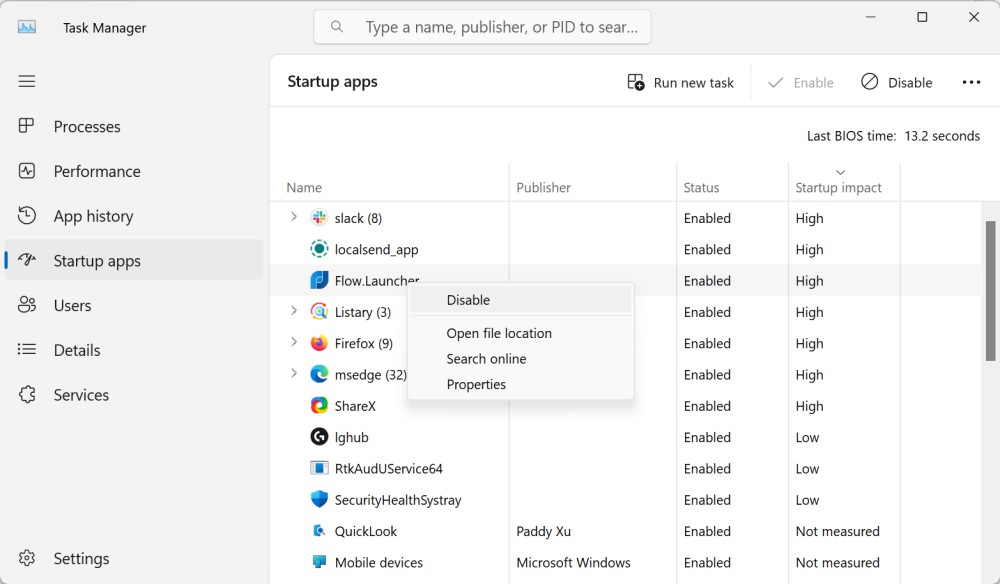
The easiest way to handle which apps open on startup is Task Manager. Here, you'll also be able to check if an app is significantly slowing down how quickly your computer boots up.

Right-click an empty part of the taskbar and choose Task Manager. In Windows 11, choose the Startup apps option from the sidebar (in Windows 10, go to the Startup tab). You will see a list of all the apps that automatically open when you turn on your PC and an estimation of how much processing power they take. You'll also see Windows processes—only disable these if you really know what you're doing. To disable or enable an app from automatically opening when you turn on your computer, right-click and choose the Enable or Disable option. That's all there is to it.
How to enable or disable startup apps using the Windows Settings app
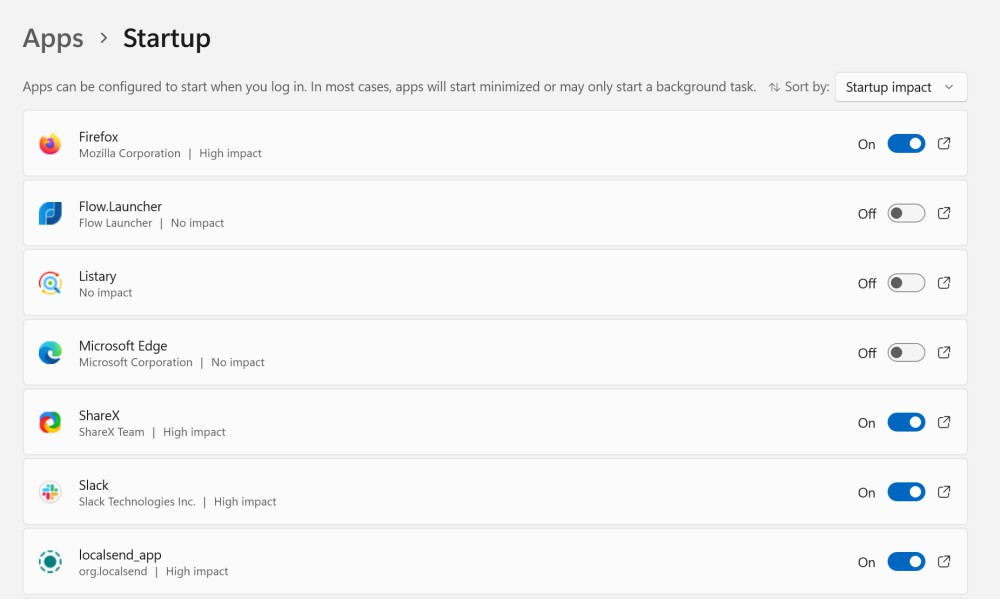
You can do the same thing from the Windows Settings app. For both Windows 10 and Windows 11, go to Settings > Apps > Startup to see a list of all supported apps. From the top, you can sort the apps by status or startup impact. Each app has a switch next to it, so you can simply toggle the app On or Off to change its startup status.
Your changes will take place the next time you boot up.